Cloudflare Zaraz Integration
Integrate services through Cloudflare Zaraz while biskoui continues to collect consent and manage per-service consent.
This guide shows how to configure services so that Zaraz executes the tool, and biskoui sends the consent decision.
Prerequisites
If you haven’t chosen an integration mode yet, start with Service integration modes.
- biskoui is installed on your website (see Script Snippet Installation).
- Cloudflare Zaraz is enabled for your site (getting started: https://developers.cloudflare.com/zaraz/get-started/).
Service Integration via Zaraz
When a service uses the Zaraz integration mode:
- biskoui still shows the banner and stores the user’s choices
- Zaraz is responsible for executing the tool (tags/scripts)
- biskoui does not run the tool scripts directly in the browser for that service
Benefits of Zaraz Integration
- Centralized tag execution in Cloudflare
- Server-side execution path (depending on tool) with fewer client-side scripts
- A clean separation: biskoui collects consent, Zaraz runs tools
Adding a Service via Zaraz
You’ll repeat this process for each service you want Zaraz to execute.
Step 1: Configure Service in Biskoui Console
- Log into the Biskoui console at https://admin.biskoui.ch
- Navigate to the Services tab
- Click Add a service (or edit an existing one)
- In the Integration mode dropdown, select Zaraz
Step 2: Configure Consent Management in Zaraz
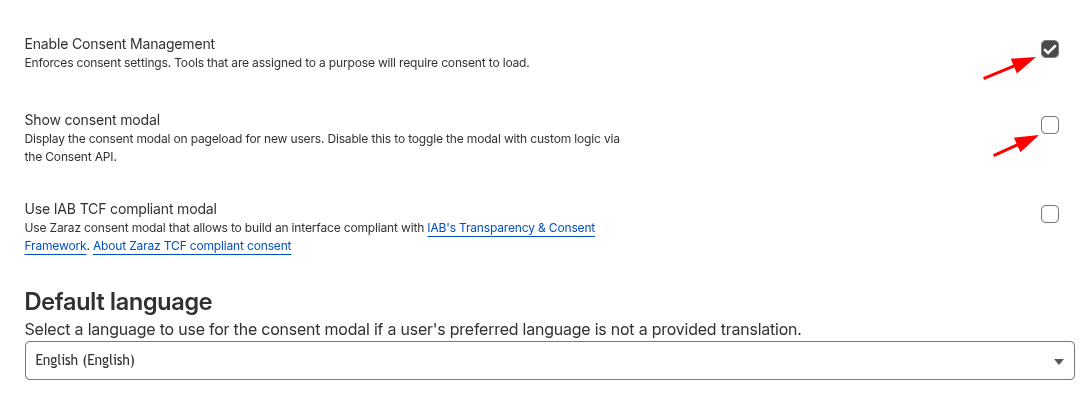
In the Cloudflare dashboard, go to Web tag Management → Consent and configure the global consent settings:
- Enable Enable Consent Management
- Disable Show consent modal (biskoui is responsible for showing the banner)
Step 3: Create a Matching Purpose in Zaraz
Still in Web tag Management → Consent, add a new Purpose.
The purpose name must match the biskoui service name (all lowercase with underscores), for example google_analytics.
This is the step where you create each consent purpose corresponding to each tool you want to trigger from the Zaraz side.

Step 4: Assign the Purpose to Tools
After you’ve created the purpose, assign it to the relevant Zaraz tool(s). Tools that are not assigned to a purpose may run regardless of consent.
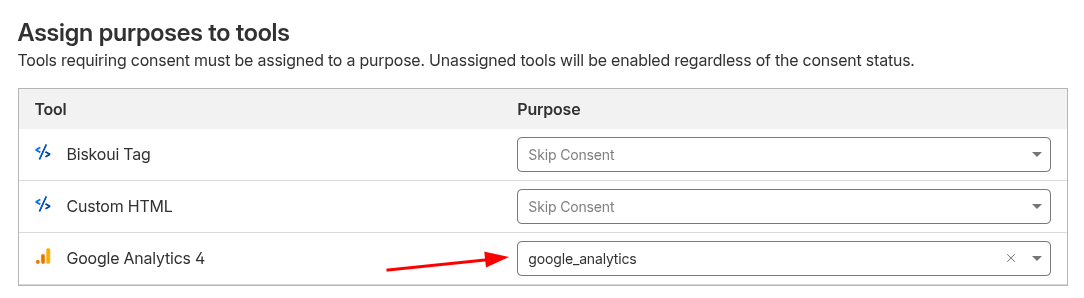
If the purpose name doesn’t match the biskoui service name, biskoui can’t associate consent for that service with the right Zaraz purpose.
Step 5: Test the Integration
- Open your website in a private/incognito window
- Trigger the banner and test Accept all, Reject all, and a custom selection
- Verify that Zaraz tools only execute when the corresponding service is accepted
What users see in the banner
From the end-user perspective, the banner behaves the same as other integration modes:
- Accept all: all services are accepted, and Zaraz-managed services are allowed accordingly
- Reject all: Zaraz-managed services are denied
- Custom choices: only the selected Zaraz-managed services are allowed
Common Service Examples
Google Analytics 4
- In Biskoui Console: Add Google Analytics, select Zaraz integration
- In Zaraz:
- For basic mode: create a matching purpose (for example
google_analytics) and assign it to the GA tool - For advanced mode: keep the GA tool on Skip Consent (no purpose assignment) and rely on Consent Mode v2
- For basic mode: create a matching purpose (for example
Google Ads / Conversion Tracking
- In Biskoui Console: Add the relevant Google Ads service(s), select Zaraz integration
- In Zaraz:
- For basic mode: create matching purpose IDs and assign them to the corresponding Google tool(s)
- For advanced mode: keep the Google tool(s) on Skip Consent (no purpose assignment) and rely on Consent Mode v2
Optional: Google Consent Mode via Zaraz
If Google Consent Mode is enabled in your biskoui settings and at least one Google service uses the Zaraz integration mode, biskoui can also propagate Google Consent Mode v2 updates through Zaraz.
Zaraz setting
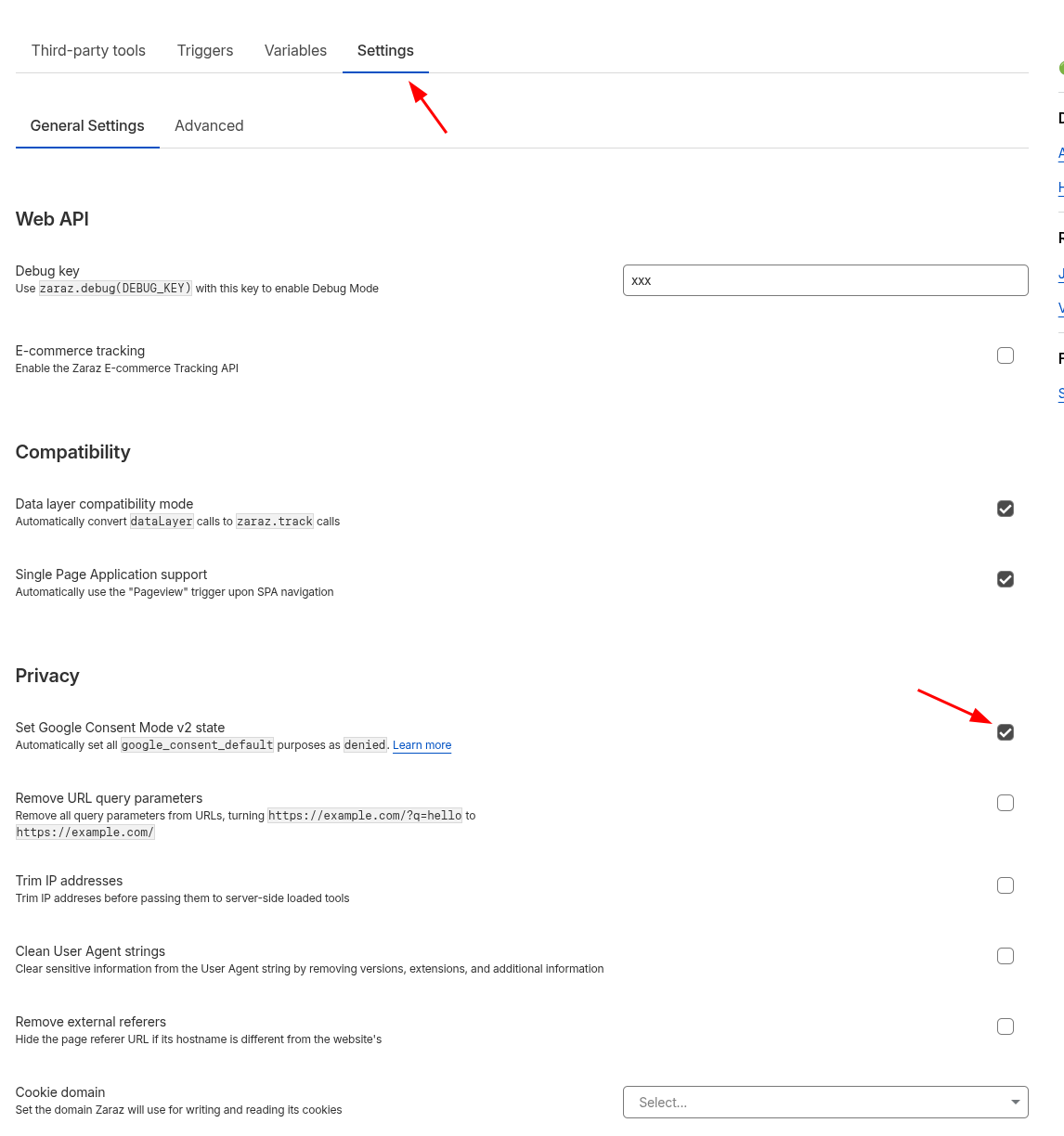
In Cloudflare Zaraz, enable the Set Google Consent Mode v2 state option in the Zaraz Settings page.
Basic mode vs advanced mode
- Basic mode: keep Google tools behind consent. Assign the Google tool(s) to a purpose (for example
google_analytics) so they only execute after the user accepts. - Advanced mode: Google tools should execute immediately (no purpose required), and rely on Consent Mode v2 signals instead of waiting for consent. In Zaraz, keep the Google tool purpose as Skip Consent.
Important note
When using biskoui + Zaraz, biskoui automatically updates Zaraz’s Consent Mode v2 event properties (default + updates). You do not need to add custom zaraz.set(...) code from Cloudflare’s documentation.
- Cloudflare reference (no need to implement the code examples): https://developers.cloudflare.com/zaraz/advanced/google-consent-mode/
- biskoui docs: see Google Consent Mode v2.
Troubleshooting
- If a service doesn’t seem to be controlled, verify the Zaraz purpose ID matches the service key in biskoui.
- Verify the purpose is assigned to the correct Zaraz tool(s).